Installing Docker Desktop on my Ubuntu 24.04 — A Product Manager’s Learning Journal
As a Product Manager, I hear the word Docker all the time.
“Let’s containerize it.”
“It works on Docker.”
“Just run it locally.”
I nodded. I moved on. I never actually touched it.
This post documents how I installed Docker Desktop on Ubuntu 24.04, not to become an engineer, but to stop being a Product Manager who doesn’t really understand what Docker is.
This is a learning journal for absolute beginners, especially Product Managers who want context, not command-line mastery.
Why a Product Manager Should Install Docker (At Least Once)
I’m not trying to write production code.
I am trying to:
Follow technical conversations without guessing
Understand developer constraints
Ask better product questions
Installing Docker locally was the smallest, lowest-risk step I could take
Why Startups Should Pay Attention
The uncomfortable truth is this:
AI success isn’t about model quality anymore.
It’s about the infrastructure around the model.
Qwen’s rise highlights four advantages only giants possess:
1. Distribution Advantage
Startups need to market their way to users.
Alibaba just placed Qwen in apps used daily by millions.
2. Capital Advantage
Startups rely on subscription revenue to survive.
Alibaba can offer free access indefinitely.
3. Data Advantage
Su Lian Jye said it well:
“More users mean more feedback — enabling faster fine-tuning.”
This is a flywheel startups can’t replicate without scale.
4. Ecosystem Advantage
AI becomes exponentially more valuable when tied to payments, logistics, local search, business tools, and marketplaces.
Startups build features.
Giants build ecosystems.
My Setup
For clarity and reproducibility:
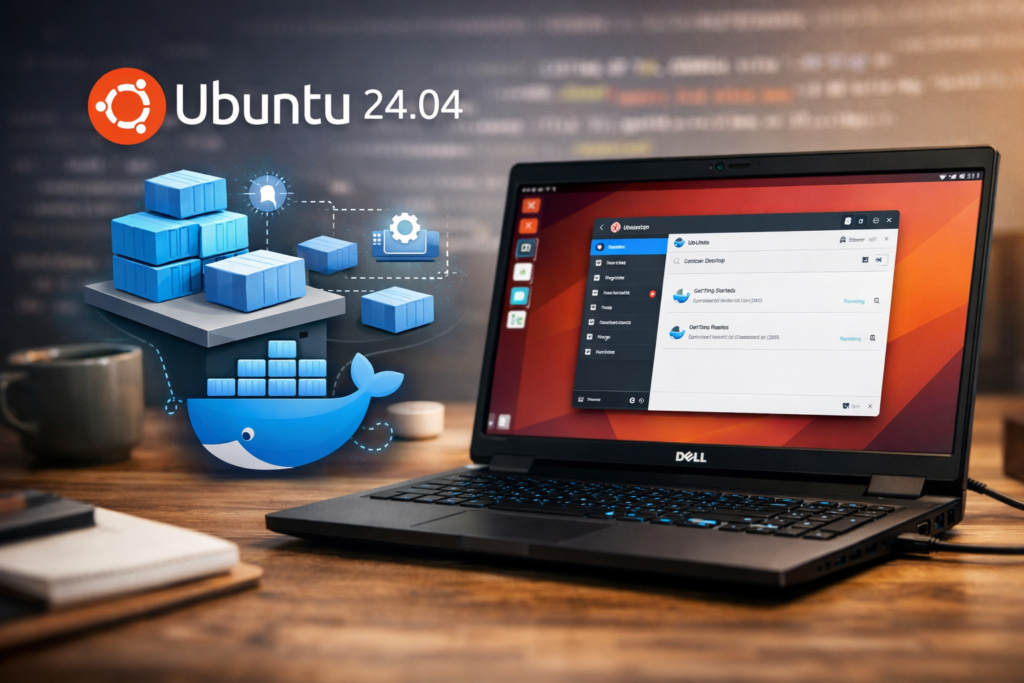
Laptop: Dell G15
Operating System: Ubuntu 24.04 (Noble)
RAM: 32 GB
Graphic Card: NVIDIA GeForce RTX™ 3060 Laptop GPU
Goal: Install Docker Desktop and verify it runs locally
Steps I followed to Installed Docker Desktop (GUI) ⏳
Step 1: Update and Clean the Base System
Before installing Docker, I updated my system and ensured no legacy Docker components were installed.
sudo apt update && sudo apt upgrade -y
sudo apt remove -y docker docker-engine docker.io containerd runc
APT reported that Docker wasn’t previously installed — which confirmed a clean starting point.
Step 2: Install Required Dependencies
Docker relies on several helper packages for secure downloads and repository management.
sudo apt install -y ca-certificates curl gnupg apt-transport-https software-properties-common
Most were already present, but explicitly installing them avoided surprises later.
Step 3: Add Docker’s Official APT Repository (Ubuntu 24.04)
This was the first moment Docker stopped feeling “magical” and started feeling infrastructure-like.
Create a secure keyring directory
sudo install -m 0755 -d /etc/apt/keyrings
Download Docker’s GPG key
sudo curl -fsSL https://download.docker.com/linux/ubuntu/gpg -o /etc/apt/keyrings/docker.asc
sudo chmod a+r /etc/apt/keyrings/docker.asc
Add the Docker repository for Ubuntu Noble
echo \
https://download.docker.com/linux/ubuntu \
$(. /etc/os-release && echo "$VERSION_CODENAME") stable" \
| sudo tee /etc/apt/sources.list.d/docker.list > /dev/null
"deb [arch=$(dpkg --print-architecture) signed-by=/etc/apt/keyrings/docker.asc] \
sudo apt updatePM insight: This step alone taught me how seriously Linux treats software trust and verification.
Step 4: Install Docker Engine and CLI
Docker Desktop relies on Docker Engine under the hood.
sudo apt install -y docker-ce docker-ce-cli containerd.ioIn my case, these were already installed or upgraded to the latest versions.
Step 5: Install Docker Desktop on Ubuntu
To make Docker more approachable, I chose Docker Desktop instead of working only from the terminal.
I downloaded the official .deb installer (amd64) and ran:
cd ~/Downloadssudo apt install ./docker-desktop-amd64.deb
Docker Desktop:
Installed cleanly
Enabled required system services
Updated user-level systemd configurations automatically
This mattered to me. Visibility beats purity when you’re learning.
Step 6: Start and Verify Docker Desktop
You can launch Docker Desktop either via:
Activities → Docker Desktop, or
Terminal:
systemctl --user start docker-desktop(Optional) Enable startup on login:
systemctl --user enable docker-desktopVerify Docker is working:
docker context lsdocker version
Seeing Docker run locally was the moment abstraction turned into understanding.
What I Learned Installing Docker as a Product Manager
Docker isn’t magic
It’s packaged infrastructure with clear dependencies.Hands-on beats theoretical understanding
Installation alone clarified months of vague conversations.You don’t need depth to gain empathy
You just need first-hand exposure.
This Is Just the Beginning
I still wouldn’t call myself “good at Docker.”
But now:
I can follow engineering discussions
I understand where my gaps are
I know what questions actually matter
Next steps for me:
Run a simple container
Break something safely
Learn how applications really ship
If you’re a Product Manager who keeps hearing “Docker” in meetings — try installing it once.
Not to become technical.
Just to stop being clueless.
🚀 If you found this useful, don’t forget to share it with fellow product enthusiasts!